Travel Pass – Affordable. Easy. Unlimited.

Travel passes like your Rapid KL My50 are now easier to buy, renew & manage – all digitally via TNG eWallet.

You no longer need to queue at the station. Just buy and activate anytime, anywhere!

Travel on trains and busses via your travel pass, with just your Touch ’n Go card.
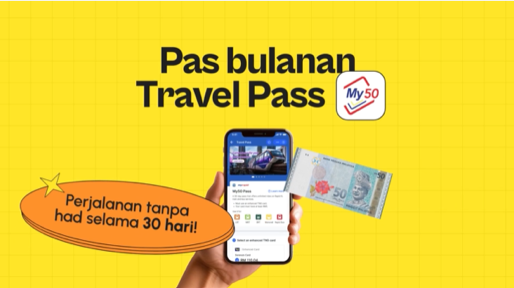
Pas bulanan

A digital travel pass costing RM50 that allows you UNLIMITED travel for 30 days with your Touch ‘n Go Card.
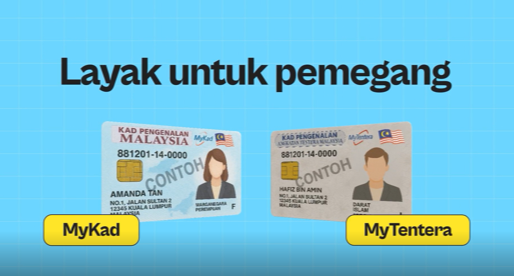
Layak pemegang

Eligible for Malaysians with a MyKad or MyTentera.

Perkhidmatan

Valid for all Rapid KL services: LRT, MRT, Monorail, BRT, Rapid KL buses & MRT feeder buses in the Klang Valley.

Simple steps to activate Travel Pass – My50

cara-aktifkan2.jpg

Read the full Terms and Conditions

Activate Your Travel Pass Now

Scan to Download TNG eWallet

Have a question?

My50 Pass is only available for users verified with MyKad

How can I buy a My50 Pass on TNG eWallet?

To buy a pass, you must:


  1. Be a Malaysian citizen with a MyKad.
  2. Verify your TNG eWallet account with your MyKad.
    • Important: You can't buy a pass on TNG eWallet if you verified your account with your passport.
  3. Use a device with NFC to link your enhanced TNG card to your TNG eWallet.

I’ve met the requirements, but I still can’t buy the My50 Pass. What should I do?

  1. To check how your verified your account, follow these steps:

    • From the homepage, go to your profile.
    • Tap your name to see account information.
    • You will see the ID used to verify your account in the ‘ID type’ field.

  2. If you verified your account with your passport, here’s what you can do:

    • Verify and update account information with your MyKad if you see the ‘Secure your account’ screen in the app.
    • You can also reach out to us directly if you need more help:
      • Call us at +603-5022 3888.
      • Reach out to us via Chatbot.
  3. Alternatively, you can still buy your pass from any RapidKL counter with your MyKad.
     

Can I purchase a My50 Pass before my current pass expires?

No. You can only renew a My50 Pass once your current one expires.

What is eKYC and how do I complete it for TNG eWallet?

eKYC stands for electronic Know Your Customer. It is a mandatory identity verification process for all TNG eWallet users, including those looking to purchase the My50 Pass. Here’s how to check your account status or complete your eKYC:

  1. On your eWallet’s home screen, tap your profile (top right)
  2. If your account isn’t verified yet, you'll see a "Not Verified" status. Tap it to start or scroll down to “Security”, tap on “Account Verification”.
  3. Follow the steps. You’ll need your physical MyKad and to snap a quick selfie.
  4. Your account verification should be approved instantly if you pass all steps.

How do I turn on NFC on my phone?

Here’s how to enable NFC (may vary slightly depending on your phone model):

  1. Android:
    • Go to Settings
    • Tap Connections or Connected Devices
    • Select NFC, then turn it ON
  2. iPhone:
    • If you’re using iPhone 7 or newer, NFC is automatically enabled — just make sure you are using the latest iOS.

Can I use a phone that doesn’t have NFC?

Unfortunately, no. All Travel Passes including My50 Pass on TNG eWallet requires NFC to scan your enhanced Touch ‘n Go Card. Almost all modern smartphones come with NFC built in. If your phone doesn’t support NFC, you may need to use another phone that does.

Where do I find Travel Pass on my eWallet?

It’s easy! To purchase the My50 Pass via Travel Pass:

  1. On your eWallet home screen, tap “My Favourites” and then tap “More”
  2. On the “All Services” page, scroll down to the “Transport” section
  3. Tap on “Travel Pass”
  4. Select My50 Pass and you’re ready to go!

No counters. No queues. Just tap, buy and ride.

How do I purchase the My50 Pass via Travel Pass on TNG eWallet?

Here’s how to buy the My50 Pass in just a few taps:

  1. Link your enhanced Touch ‘n Go Card
  2. If you’ve already linked it, just select the card to start.
  3. If not, tap the "+" symbol or "Add card”, then scan your card using the NFC symbol and follow the steps. Pick your start date. 
    The app will suggest today’s date by default, but you can choose any date you prefer.
  4. Confirm and pay
    Check your details and make sure you have enough balance in your eWallet to proceed.
  5. Scan to activate
    Once payment is successful, scan your card again to activate the pass and you’re good to go!

Still have questions?

Browse our FAQ for quick answers.

Browse our FAQs